 Understanding the TabStax popup
The TabStax popup is the browser extension interface — your quick-access panel for next actions and Stax while you’re working in Chrome.
Why this helps
When you’re juggling multiple projects, your brain has to answer two questions: “What should I do next?” and “Which project should I open?” The main popup splits those questions into two clean sections so you can either follow the last thing you were working on, pick a different next action that matters more right now, or open a whole Stax when you’re ready to dive in. No hunting through tabs or trying to remember which project needed what.
The top bar gives you quick access to Search, Feedback, Help, and Sign out. Below that, the popup has two main sections:
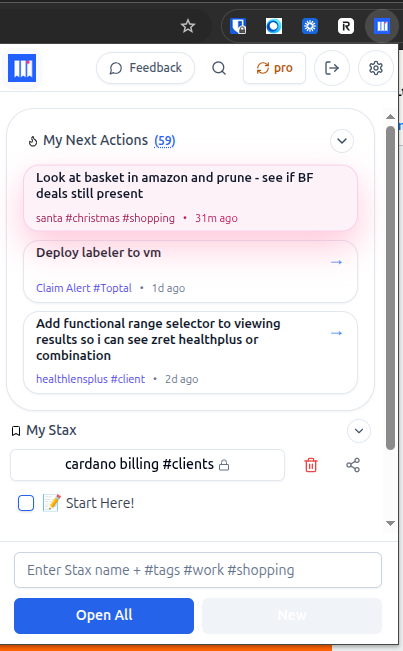
My Next Actions
This is your cross-project brain inbox. It shows three next actions pulled from across all your Stax, sorted by last updated.
What you’ll see:
- The most recently updated next action has a soft pink glow – a gentle nudge toward “this is probably what you were just working on.”
- You’re not locked into that choice; it’s just a suggestion based on recency.
What you can do:
- Click any next action to jump to that Stax’s Start Page – this opens the page where you can edit or review that Stax’s next actions (it doesn’t open all the tabs; just the Start Page).
- See more next actions in two ways:
- Click the number beside “My Next Actions” (e.g.,
59) to open a fuller list. - Collapse the My Next Actions panel; when collapsed, a “Browse all” link appears. Click it to see a dashboard listing all projects and their next actions.
- Click the number beside “My Next Actions” (e.g.,
Why this matters:
Instead of asking yourself “What was I doing?” or “Which Stax had that thing I needed to finish?”, you just glance at this section. Your brain can decide: follow the pink-highlighted recent action or pick something else that’s more urgent right now.
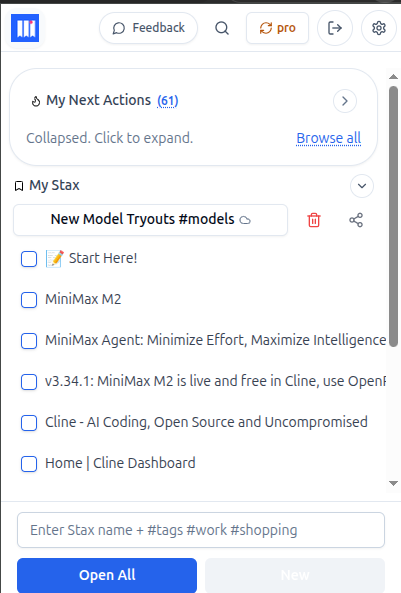
My Stax
This section is where you open and manage whole Stax. Use it when you’re ready to dive into a full project with all its tabs.
What you can do:
- Collapse or expand the My Stax section to focus on either actions or your project list.
- Click the dropdown to see all your Stax.
- Scroll and select the Stax you want.
- Click “Open All” to open every tab in that Stax.
- Use the search field at the top to quickly find a Stax by name or hashtag (e.g., search
#clientsorbilling).
Creating a new Stax from this view:
- In the Stax name field, type a name plus optional tags – for example,
cardano billing #clients. - Click New.
- The current set of tabs is saved as that Stax. Tags make it easier to find later.
- (For more detail, see Creating your first Stax.)
Now you can…
Now you can answer “What should I do next?” without digging through projects, and open the right Stax in one click when you’re ready to work—no more rebuilding your setup or losing track of which project needed what.
Related guides:
- What problem HeyStax solves – the core problem and mindset shift
- What you see the first time you open Heystax – your first experience after installing
- The HeyStax Mental Model – understand the big idea: think in problems, not tabs
- Creating your first Stax – step-by-step guide with a real example
- What is a Stax? – deep dive into the core concept