 What you see the first time you open Heystax
You’ve just installed Heystax, pinned it to your browser toolbar, and clicked the icon. This is the very first screen you’ll see. It’s designed to capture your current browser window—all the tabs you have open right now—and save them as your first Stax. This gives you a safe, named workspace you can return to anytime.
Pin HeyStax and open the popup
After installing the Heystax extension:
- Pin the Heystax icon to your browser toolbar (usually in the top-right corner near other extensions).
- Click the icon to open the popup.
- The first-time view appears, showing your current tabs ready to become a Stax.

Your current window, ready to become a Stax
The main section shows a card that says:
👋 No stax yet — let’s create your first one!
Below that, you’ll see a list of your currently open tabs (for example: HeyStax Help pages, Gmail, research tabs, whatever you have open right now).
What this means:
HeyStax is looking at your current browser window and treating it as a potential workspace. These tabs aren’t random—they’re probably related to something you’re doing right now. HeyStax is offering to save them all together so you can come back to this exact setup later.
Naming your first Stax (and tags)
At the bottom of the popup, there’s an input field pre-filled with a suggested name, like:
My First Stax #test
You can change this to anything that describes what these tabs are for:
Christmas Shopping 2025Work Project - Q1 Report #clientsLearning React #dev #tutorials
Tags (the words starting with #) are just keywords that help you categorize and quickly find your Stax later. They’re completely optional, but helpful when you have many Stax.

What happens when you click New
When you’re ready to save this workspace:
- Check the name and tags in the input field (edit if needed).
- Click the “New” button.
- Heystax saves all your currently open tabs together as a Stax under that name.
- A Start Page opens where you can add your next actions for this workspace (what you need to do next when you come back to this work).
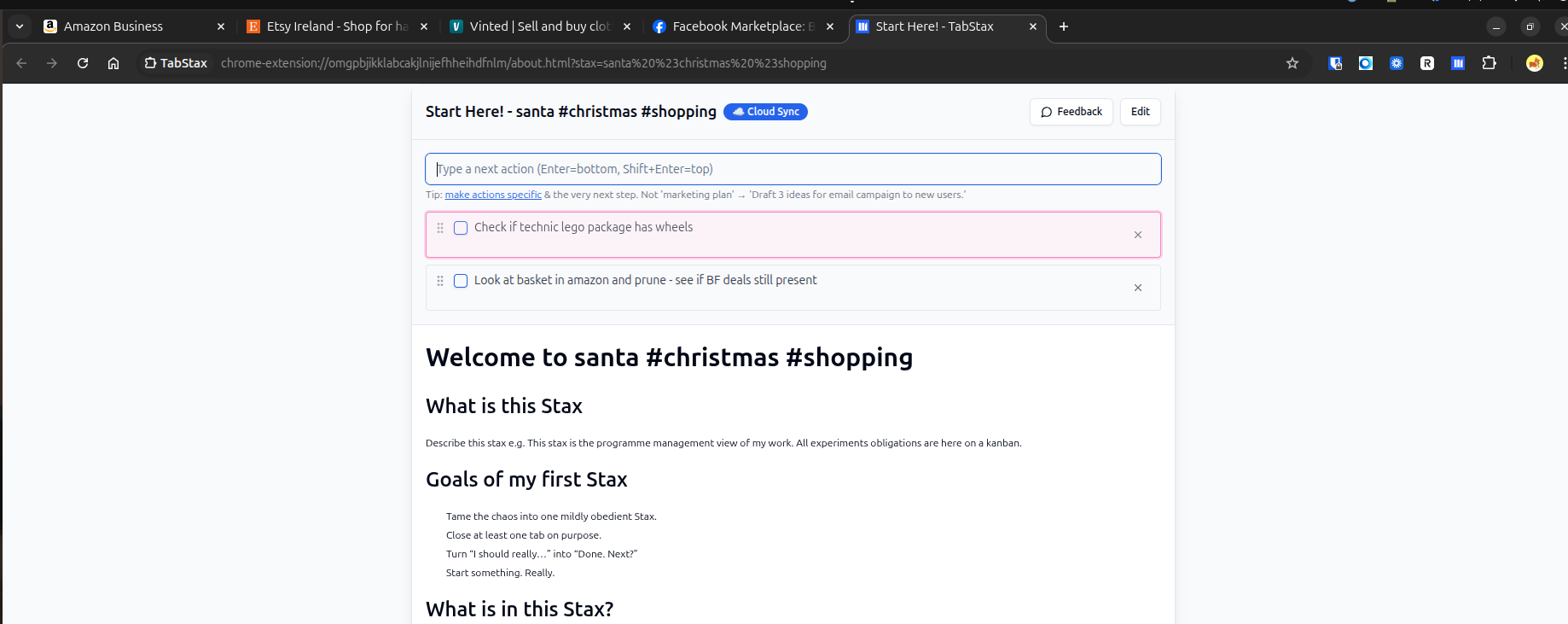
After that:
- Auto-save: If you add or remove tabs while working in this Stax, Heystax automatically keeps it updated.
- Close safely: You can confidently close all these tabs (or the whole window) when you’re done. Your Stax is saved.
- Reopen anytime: Later, when you want to pick up this work again:
- Open the Heystax popup
- Find this Stax in “My Stax”
- Click “Open All”
- All your tabs reopen together, and your next actions appear at the top
You step back into the same workspace instead of hunting through browser history or trying to remember what you had open.
Now you can…
Now you can stash this whole workspace with one click and trust it’ll be there when you’re ready to pick up again—no more losing track of tabs or forgetting where you left off.
Next steps:
- What problem HeyStax solves – the core problem and mindset shift
- Creating your first Stax – detailed step-by-step guide with examples
- The HeyStax Mental Model – understand the big idea: think in problems, not tabs
- Understanding the main popup – navigate next actions and manage your Stax